

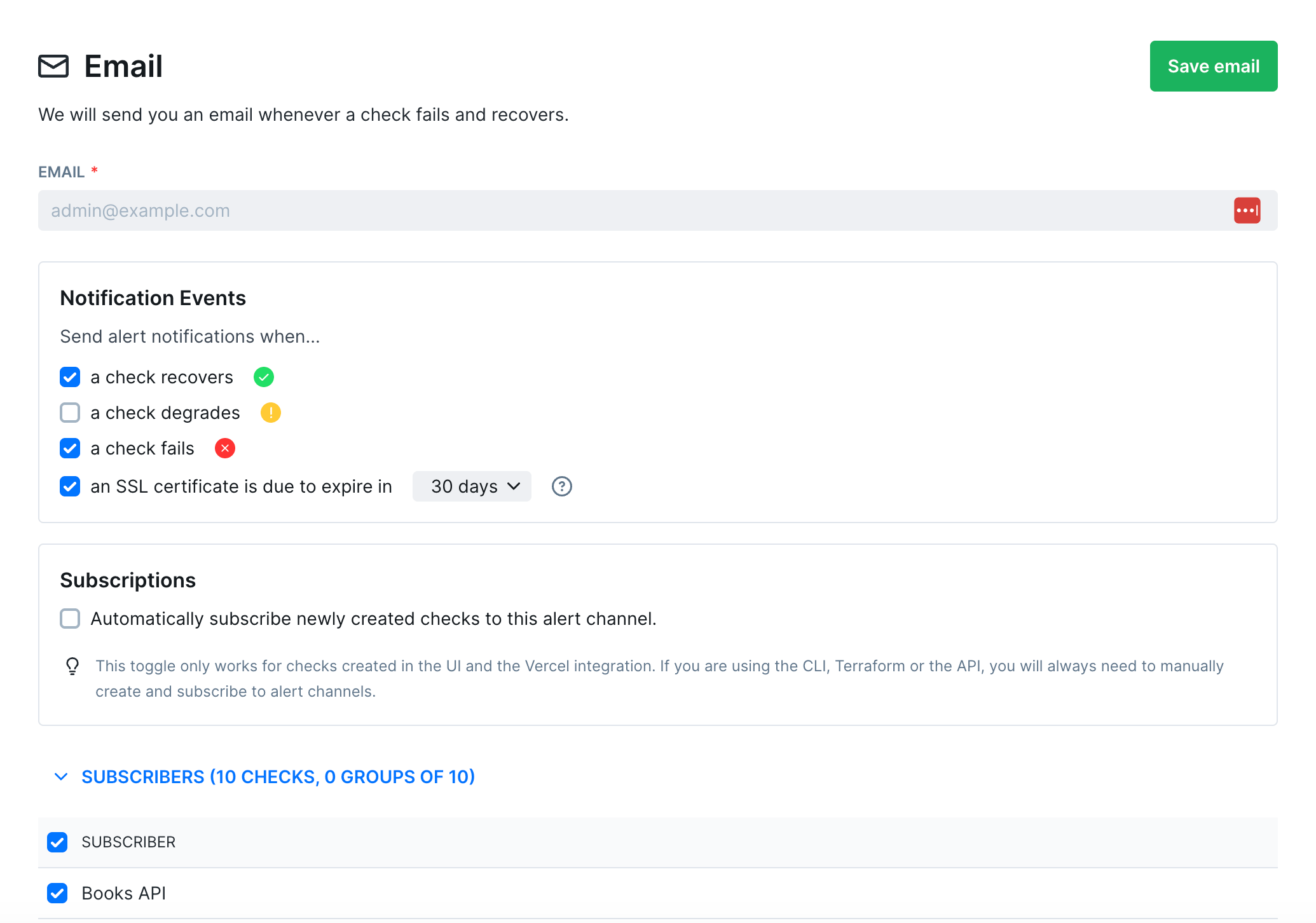
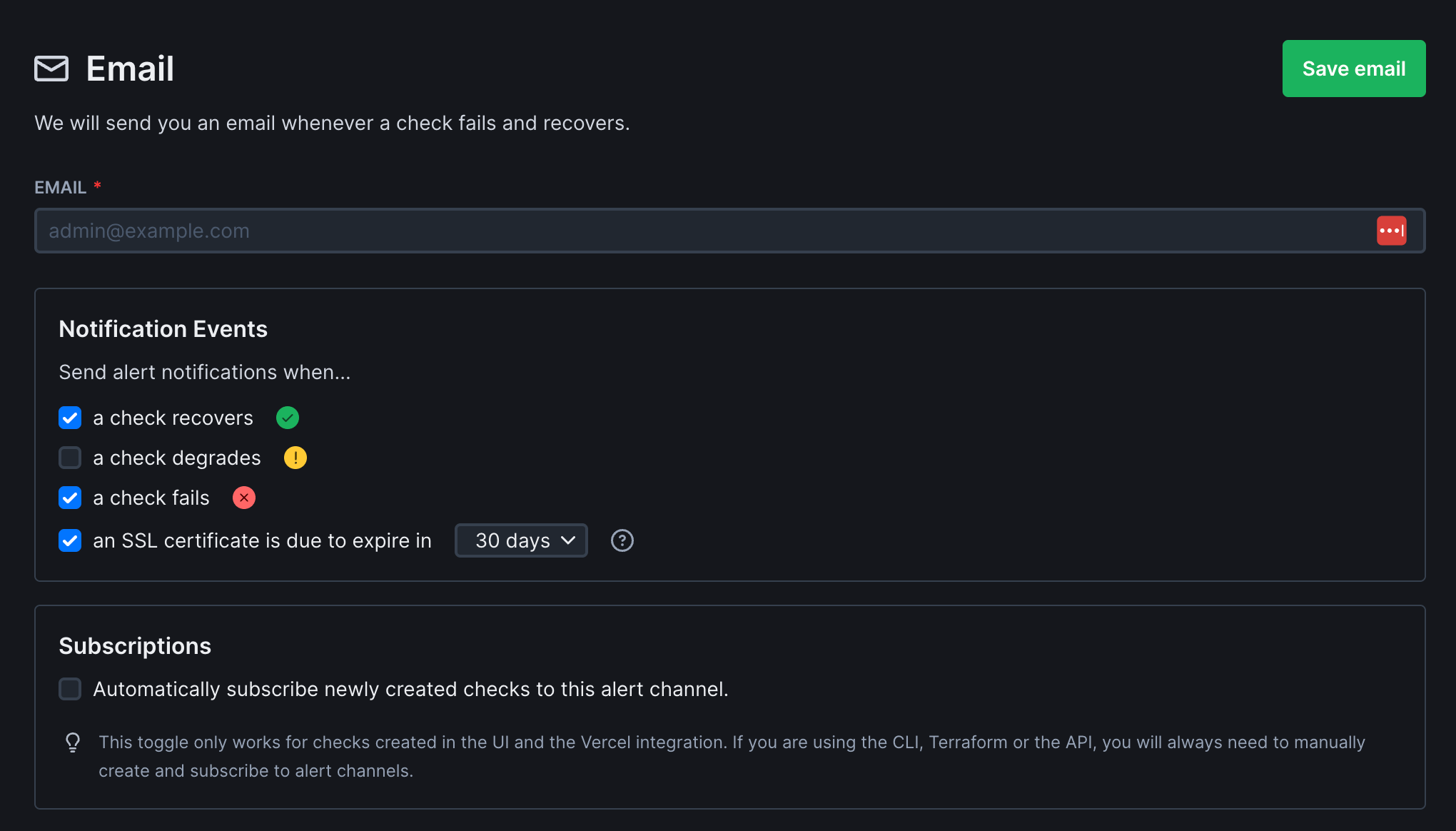
Basic Email Configuration
To recieve alerts, you’ll need to add a valid email address, choose what states you want to receive alerts for, and then also add subscriptions to checks. When an alert is triggered, you’ll receive an email like below: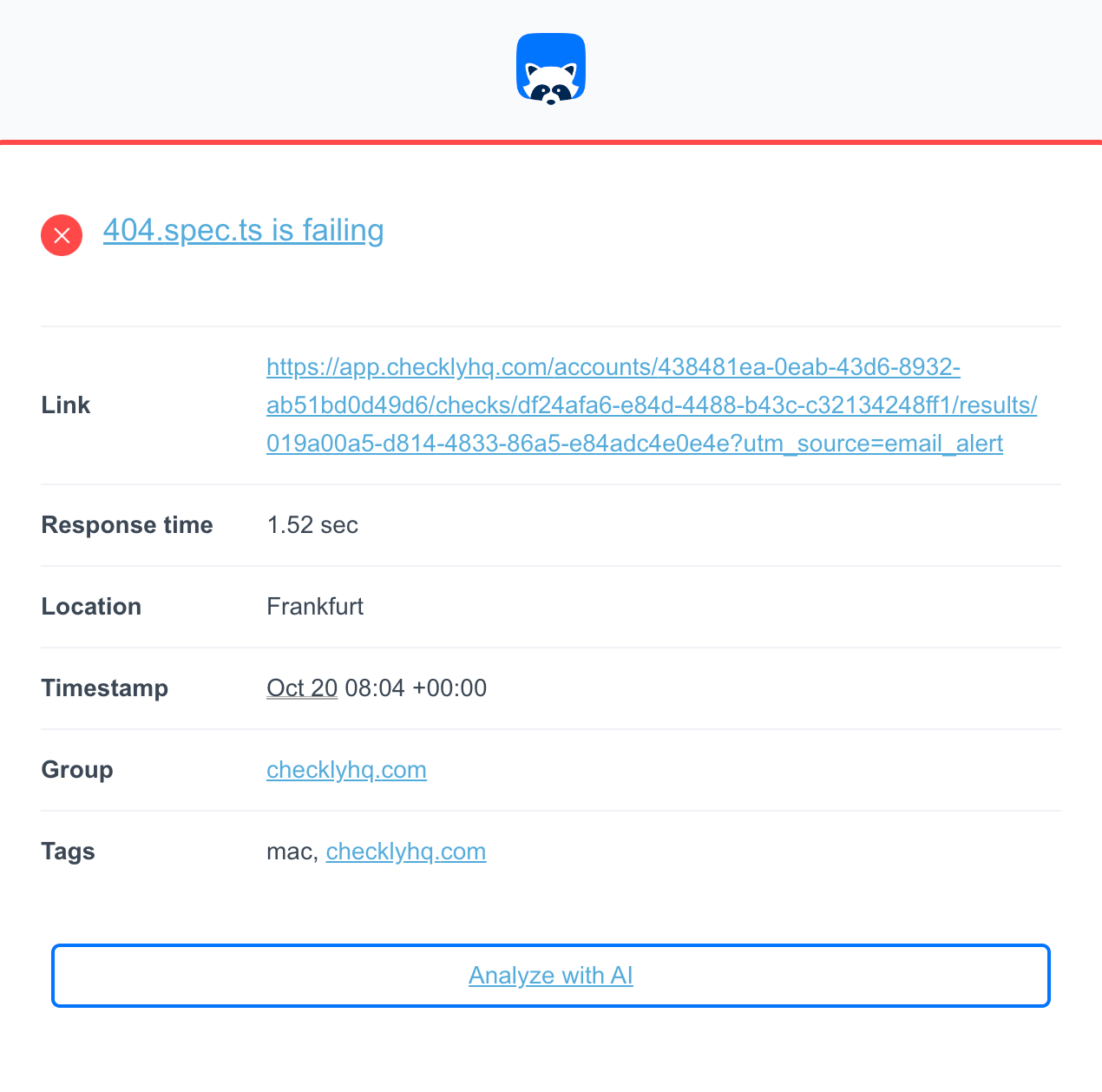
Troubleshooting
”Inactive addresses” error
If you see this error, this means that your email address has been added to our email suppression list:
You tried to send to recipient(s) that have been marked as inactive. Found inactive addresses: name@example.com. Inactive recipients are ones that have generated a hard bounce, a spam complaint, or a manual suppression.
If we send an email to your email address and your email provider rejects it with a hard bounce, then we automatically add that recipient address to our email suppression list. This ensures that we don’t send emails that permanently can’t be delivered, like to deleted email addresses. However, sometimes transient issues with your email provider can also return a hard bounce.
If you see this error or if you’re not recieving emails from Checkly, reach out to support@checklyhq.com. We can check if your email is on our suppression list and re-activate it.
If the same address keeps getting suppressed after re-activation, please check with your IT or email administrator to understand why your email provider keeps hard bouncing emails from Checkly.